
Sky Glass IPTV UK buffering fix router settings
If your Sky Glass IPTV UK is buffering, freezing, or showing playback errors, you need Sky Glass IPTV UK buffering fix router settings. IPTV needs a stable, uninterrupted connection, and most routers are not optimised for streaming by default.
Follow the steps below to properly optimise your router for IPTV.
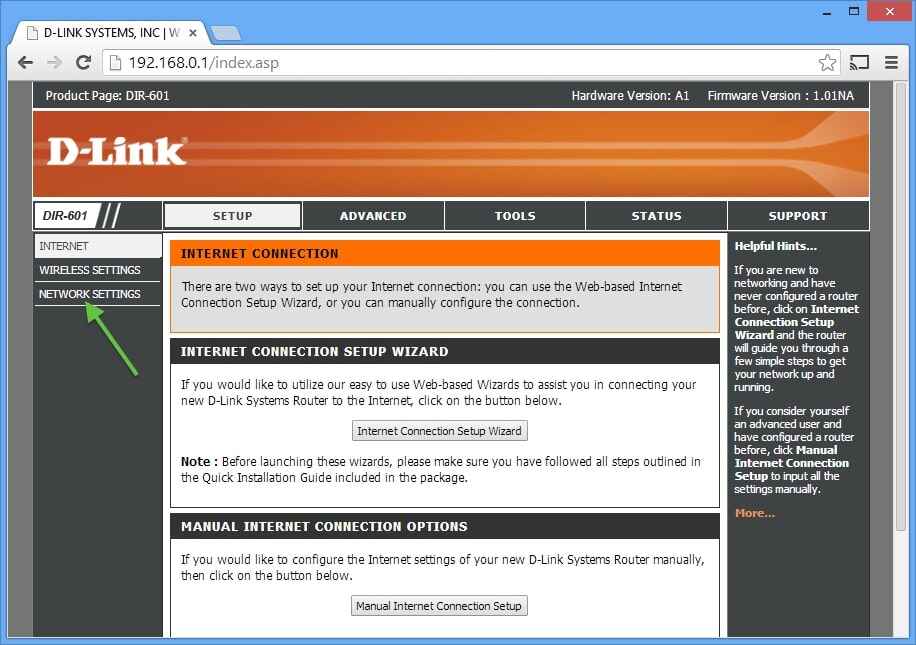
1. Disable Parental Controls / Content Filtering (Very Important)
Many UK routers block IPTV traffic through parental controls or content filters.
- Log in to your router admin panel (usually
192.168.0.1or192.168.1.1) - Find Parental Controls, Content Filter, or Internet Safety
- Turn them OFF
- Save settings and reboot the router
This step alone fixes IPTV issues for many users, especially on ISP routers.
2. Use Ethernet Instead of Wi-Fi (Best Improvement)
Wi-Fi is convenient but unstable for IPTV.
Best practice:
- Connect your TV / Firestick / Android box directly to the router using an Ethernet cable
- This removes interference, signal drops, and congestion
If Ethernet is not possible, follow Wi-Fi optimisation below.
3. Switch to 5GHz Wi-Fi (If Using Wireless)
Most routers broadcast two Wi-Fi bands:
- 2.4GHz → longer range, slower, more interference
- 5GHz → shorter range, faster, ideal for IPTV
What to do:
- Connect your IPTV device to the 5GHz network
- Keep the device close to the router
- Avoid walls and long distances
4. Enable QoS (Quality of Service) for IPTV
QoS tells your router to prioritise IPTV traffic.
- Open router settings
- Find QoS / Traffic Control / Bandwidth Management
- Enable QoS
- Set your IPTV device as High Priority
- Save and reboot
This prevents buffering when others use the internet.
5. Restart Router Weekly (Simple but Effective)
Routers build up cache and memory errors over time.
- Restart your router once a week
- Always restart after:
- Changing settings
- Internet speed upgrades
- IPTV app updates
6. Reduce Network Load During Streaming
IPTV struggles when the network is overloaded.
Avoid during streaming:
- Large downloads
- Cloud backups
- Game updates
- Multiple 4K streams on one connection
Disconnect unused devices if needed.
7. Update Router Firmware
Outdated firmware can cause streaming issues.
- Check router admin panel for Firmware Update
- Install updates if available
- Reboot after update
8. DNS Settings (Optional but Helpful)
Some users get better stability with public DNS:
- Primary DNS:
8.8.8.8 - Secondary DNS:
8.8.4.4
Change DNS in router settings, save, and restart.
Recommended Internet Speed for IPTV (UK)
- HD IPTV: 15–20 Mbps
- 4K IPTV: 40–50 Mbps
- Stability matters more than speed
Quick Sky Glass IPTV UK buffering fix router settings Checklist
- Parental controls OFF
- Ethernet connected (or 5GHz Wi-Fi)
- QoS enabled for IPTV
- Router restarted regularly
- Network load reduced
Final Tip
If IPTV works on mobile data but not home Wi-Fi, your router settings are almost always the cause. Optimising the router fixes the issue in most cases without changing ISP or IPTV provider. So for better performance of Sky Glass IPTV UK you must change these router settings.