Sky Glass IPTV APK Download 2026 – Firestick and Android Installation Guide
Looking for the Sky Glass IPTV APK download for 2026? This guide explains how to download the APK and install it on compatible Amazon Fire TV Stick devices, Android TVs, Android TV boxes, smartphones and tablets.
The Sky Glass IPTV setup process depends on your device and operating system. Follow the relevant instructions below, check application compatibility and make sure you have the correct subscription details before signing in.
Before downloading: Confirm that the file comes from a source you trust. An APK installed outside an official app store may not receive the same security checks as an app distributed through that store.
Download Sky Glass IPTV APK for 2026
Use the download link below to access the APK download page supplied for this website.
Download link
https://aftv.news/5293334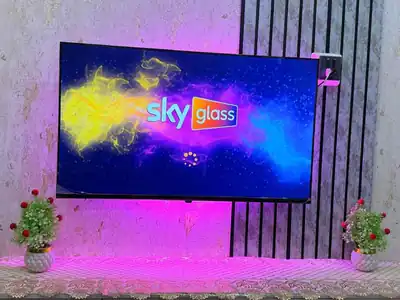
The link uses the AFTV Downloader service. We could not independently verify the current file, its publisher, version or integrity during preparation of this guide. Check the destination and file details before installing.
Sky Glass IPTV APK Information
| Detail | Information |
|---|---|
| Application name | Sky Glass IPTV |
| Download method | APK link |
| Intended platforms | Compatible Android-based devices |
| Amazon Fire TV Stick | Check model and operating system compatibility |
| Android TV and Android boxes | Check application requirements |
| Android phones and tablets | Check Android version and compatibility |
| Subscription | Check the applicable service terms |
| Download link | https://aftv.news/5293334 |
The exact APK version and file size should be confirmed on the download page before installation. Do not assume that a file is the latest release simply because its page includes the year 2026.
How to Install Sky Glass IPTV APK on Amazon Fire TV Stick
Amazon Fire TV Stick devices use Fire OS, and installation menus vary between models and software versions. The following steps explain the general process for installing a compatible APK.
Fire TV Stick installation steps
- Step 1: Connect Your Fire TV Stick
Connect your Fire TV Stick to your television and ensure that it has a working internet connection.
Open the Fire TV home screen and confirm that the device has completed its initial setup.
- Step 2: Install the Downloader App
Open the Amazon Appstore and search for the Downloader application.
Install the application from its official store listing if it is available for your device. Open it after installation.
- Step 3: Allow the Required Installation Permission
On compatible Fire TV devices, you may need to authorise Downloader to install applications from outside the Amazon Appstore.
Depending on your Fire OS version, look under:
Settings → My Fire TV → Developer Options → Install Unknown Apps
Select Downloader and enable the relevant permission if the device provides this option.
Some models may use different menu names or restrict sideloading. Follow the instructions appropriate to your device rather than enabling unrelated security settings.
- Step 4: Enter the Download Link
Open Downloader and select its URL input field.
Enter:
https://aftv.news/5293334Check the address carefully before proceeding.
- Step 5: Open the Download Destination
Select the option to visit the address. Review the destination page and check the file details before downloading.
If the page redirects to an unexpected website, requests unrelated software or displays suspicious instructions, stop and verify the destination.
- Step 6: Download the APK
If the destination presents the expected APK and you trust its source, start the download.
Wait for the download to finish. Do not disconnect your device during the process.
- Step 7: Install the Application
Open the downloaded file and select Install if Fire OS recognises it as a compatible Android package.
If the installation option is unavailable, check the device's compatibility, file integrity and application permissions. Do not bypass operating-system restrictions using untrusted tools.
- Step 8: Open Sky Glass IPTV
After installation, open the application from your Fire TV Apps section.
Follow the application's instructions and enter your valid subscription details if required.
- Step 9: Test Your Setup
Check whether the application opens correctly and whether the features available to your account work as expected.
If you encounter an error, note the message and consult the troubleshooting section below.
How to Install Sky Glass IPTV APK on Android TV
Android TV and Google TV devices may support compatible APK installations, but the available settings depend on the manufacturer and operating system.
Android TV installation steps
- Step 1: Prepare Your Android TV
Connect your television to the internet and open its settings.
Check that the device has sufficient storage and runs a compatible Android version.
- Step 2: Open a Trusted Browser
Use a browser available on your device or another supported download method.
Enter the supplied address:
https://aftv.news/5293334Review the destination before downloading.
- Step 3: Download the APK
If the download page provides the expected compatible APK, start the download and wait for it to finish.
Confirm the file details before opening it.
- Step 4: Authorise Installation if Required
Depending on the device, Android may ask you to permit a particular application to install packages from unknown sources.
Only grant the required permission to an application you trust. Avoid changing unrelated security settings.
- Step 5: Install the APK
Open the downloaded file using the device's supported package installer.
Follow the on-screen instructions if the package is compatible.
- Step 6: Launch the Application
Open Sky Glass IPTV and follow the supplied activation or sign-in instructions.
If the application does not appear or fails to open, check its requirements against your device model and Android version.
How to Install Sky Glass IPTV APK on an Android TV Box
Android TV boxes vary considerably in their operating systems, processor architectures and supported applications. A package that works on one box may not work on another.
Android TV box installation steps
- Connect your Android box to the internet.
- Check the Android version and available storage.
- Open a trusted browser or supported download application.
- Visit
https://aftv.news/5293334. - Check the download destination and file information.
- Download the APK only if the file and source are appropriate for your device.
- Authorise the necessary installation permission if required.
- Open the downloaded file and follow the installation instructions.
- Launch the application and follow its supported activation process.
If Android reports that the package is incompatible, do not repeatedly attempt installation. Confirm the required Android version and processor architecture with the application provider.
How to Install Sky Glass IPTV APK on an Android Phone or Tablet
This method applies only to compatible Android devices. The application may not support every Android version or screen size.
Android phone and tablet installation steps
- Step 1: Open Your Browser
Open a trusted browser on your Android phone or tablet.
Visit the supplied download address:
https://aftv.news/5293334 - Step 2: Check the File
Review the download page and confirm the expected application name and file type.
Avoid files that request unrelated software or permissions that do not appear necessary.
- Step 3: Download the APK
If the destination and file are suitable, start the download and wait for completion.
- Step 4: Open the Downloaded File
Open the file from your browser's download list or your device's Downloads folder.
If Android requests permission to install unknown apps, review the source application and authorise it only if you trust that source.
- Step 5: Complete Installation
Follow the package installer instructions.
If installation fails, check your Android version, available storage and package compatibility.
- Step 6: Launch the Application
Open the installed application and follow its sign-in or activation instructions.
Keep your subscription credentials private and use a secure internet connection when entering account information.
Sky Glass IPTV APK Compatibility Guide
Before installing the APK, check whether your device supports it.
| Device | What to check |
|---|---|
| Amazon Fire TV Stick | Fire OS version and sideloading support |
| Fire TV Cube | Device compatibility and installation permissions |
| Android TV | Android version and application requirements |
| Google TV devices | Supported installation method and application compatibility |
| Android TV boxes | Android version, processor architecture and available storage |
| Android phones | Android version and application support |
| Android tablets | Android version, screen support and application requirements |
Important: An APK is not a universal application format for every television or streaming device. Samsung and LG Smart TVs, Roku devices, iPhones, iPads and Windows computers generally require platform-compatible applications rather than a standard Android APK.
If your device does not support the APK, check whether the service offers a compatible application or setup method for your platform.
What to Do After Installing Sky Glass IPTV
Once installation is complete, follow the application's supported setup process.
Enter Your Subscription Details
If the application requires an account, enter the credentials provided for your authorised service. Check that the subscription is active and that you are using the correct login method.
Check Application Settings
Review the available playback, language and interface settings. The options depend on the application version and device.
Test Your Internet Connection
Open the application and test the available features. If playback is interrupted, check your broadband connection and Wi-Fi signal.
Keep the Application Updated
Use the provider's verified update instructions. Before installing a new APK, confirm that it comes from a trusted source and is compatible with your device. Avoid installing files from unknown mirrors or following unsolicited update links.
Common Sky Glass IPTV APK Installation Problems
APK Download Will Not Start
Check your internet connection and the download destination. If the link is unavailable or redirects unexpectedly, stop and verify it before trying another source.
App Not Installed Error
This error can occur when the package is incompatible, the download is incomplete, the device lacks storage or an existing version conflicts with the new package. Check compatibility and file integrity before trying again.
Installation Permission Is Missing
On supported Android-based devices, review the installation permissions for the application handling the APK. Menu names vary by device and operating system. Only grant permissions that are necessary and that you understand.
The Application Crashes on Launch
Restart the device and check whether the application supports your operating system version. If the problem continues, consult the application's provider. Avoid deleting application data unless you understand that doing so may remove saved settings.
Login or Activation Fails
Check your account details and subscription status. Confirm that you are using the correct activation method for the application. Contact the relevant provider if the credentials remain invalid.
Buffering or Interrupted Playback
Check your connection, improve Wi-Fi reception and reduce unnecessary network usage. A wired connection may help on supported devices. Playback quality also depends on the stream source, application and service.
Security Advice Before Installing an APK
Installing an APK outside an official app store involves additional security considerations.
- Download files only from a source you trust.
- Check the destination address before following a redirect.
- Verify the publisher and file details where this information is available.
- Scan the file with a reputable security tool where possible.
- Review application permissions before granting access.
- Avoid disabling security features permanently.
- Do not share passwords or subscription credentials publicly.
- Remove the installation permission when it is no longer needed, if your device allows this.
We have not independently verified the current APK's publisher, malware status or cryptographic integrity. Do not treat the download link alone as proof that the file is safe.
Before using an IPTV service, confirm that the provider is authorised to supply the content you intend to access.
Frequently Asked Questions
The download address supplied for this page is https://aftv.news/5293334. Check the destination and file details before downloading. The current file version and integrity have not been independently verified.
Install Downloader from the Amazon Appstore if it is available for your device, open the supplied download link and review the destination. If the file is compatible and trusted, download it and follow Fire OS's supported installation process.
No. Compatibility depends on the Android version, processor architecture, device restrictions and application requirements. Check compatibility before installing.
A standard Android APK is not generally the correct installation format for Samsung Tizen or LG webOS televisions. Check for an application designed for your specific television or use a compatible external Android-based streaming device.
The existing website describes the app as an APK download rather than a Google Play installation. Check the current official app listings and download destination before proceeding.
Safety cannot be established from a download URL alone. Verify the source, publisher and file where possible, review permissions and scan the package with a reputable security tool. We have not independently verified the current file.
Access requirements depend on the application and service. Check the applicable subscription terms and activation instructions before paying.
Check the Android version, device compatibility, storage space, download integrity and required installation permissions. If the problem persists, contact the application provider with the exact error message.
No. Android APK files are not designed for iOS or iPadOS. Apple devices require a compatible application distributed through an appropriate iOS installation method.
Follow the provider's verified update instructions. Check the version, source and compatibility before installing an update over an existing application.
Download and Set Up Sky Glass IPTV
Use the supplied download address to access the APK page, then follow the instructions for your compatible Fire TV or Android device.
Before installing, verify the file and its source. After installation, use the supported activation process and check the service terms.
Download link: https://aftv.news/5293334
For help with device compatibility or installation, use the support options published on the website.