Sky Glass IPTV Setup Guide UK – Install on Every Supported Device
Setting up Sky Glass IPTV starts with choosing a compatible device, installing the appropriate IPTV application and entering your subscription details. This guide explains the setup options listed on our website for Android devices, Amazon Fire TV Stick, iPhone, iPad, Samsung and LG Smart TVs, Windows PCs, Roku and MAG/STB devices.
Before you begin, make sure you have a stable internet connection, an active subscription where required, and the correct login or activation details. Always use applications and streaming services that you are authorised to access.
Choose your device below to find the relevant setup instructions.
What You Need Before Setting Up Sky Glass IPTV
Prepare these essentials before starting the installation process.
Internet connection
Connect your device to a reliable broadband connection. The speed you need depends on the stream quality and other devices using your network.
Compatible device
Check whether your television, streaming stick, phone, tablet or computer supports the required IPTV player.
IPTV application
Install the appropriate application for your device and operating system.
Subscription details
Keep your username, password, server URL or playlist information ready, depending on the supplied setup method.
Installation instructions
Follow the guidance for your specific device rather than using instructions intended for another platform.
If you are unsure which application to use, confirm compatibility with the device manufacturer and your service provider before installing anything.
Sky Glass IPTV Setup on Android TV and Android Boxes
Android TV devices and Android streaming boxes may support compatible IPTV applications. The setup process depends on the application and the device's operating system.
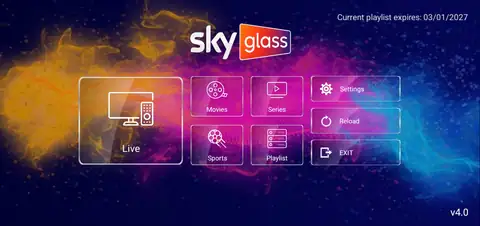
How to Set Up Sky Glass IPTV on Android
- Connect your device to the internet.
Connect your Android TV, Android box or phone to Wi-Fi or a suitable wired connection.
- Choose a compatible application.
Check the available applications for your device. Your service may provide its own application or support a compatible third-party IPTV player.
- Install the application.
Use the official app store where the application is available. If your provider supplies an APK outside an official store, verify its source and authenticity before installing it. Avoid granting unnecessary permissions.
- Open the application.
Launch the player and locate the login, playlist or activation section.
- Enter your subscription details.
Enter the credentials or playlist information supplied for your authorised service. Check each field carefully before submitting.
- Test playback.
Wait for the available content to load and test the supported features.
For Android TV and Android boxes in the UK, this process provides a general starting point. Menu names and installation options vary by device and software version.
Sky Glass IPTV Setup on Amazon Fire TV Stick
Amazon Fire TV Stick is a popular streaming device for UK households. The installation method depends on the Fire TV model, operating system and application being used.
How to Install an IPTV Application on Fire TV Stick
- Connect the Fire TV Stick.
Connect the device to your television, complete its initial setup and connect it to the internet.
- Open the Amazon Appstore.
Search for the IPTV application recommended for your subscription. Install it if it is available and compatible with your device.
- Check the installation method.
If the required application is distributed as an APK, confirm that your particular Fire TV model and operating system support that installation method. Some newer Fire TV devices may restrict sideloading.
- Install the compatible application.
Follow the application's verified installation instructions. Only enable permissions needed for the installation and use of the application.
- Enter your subscription details.
Open the application and enter the correct login credentials, server address or playlist information.
- Test the connection.
Check that the application loads successfully and that the content available to your subscription plays correctly.
Fire TV Stick Setup Problems
If an application does not install, check its compatibility with your device and operating system first. Restart the device, review available storage and consult the application's official troubleshooting instructions.
Do not assume that every Fire TV Stick model supports the same installation process.
Sky Glass IPTV Setup on Samsung Smart TVs
Samsung Smart TVs generally use the Tizen operating system. Application availability depends on the television model, region and software version.
The setup page lists IBO Player as an option for supported Samsung televisions. Confirm that the application is currently available and compatible with your model before proceeding.
How to Set Up an IPTV Player on Samsung TV
- Connect your Samsung television to the internet.
- Open the Samsung app store and check for a compatible IPTV player.
- Install the player if it is available for your model.
- Open the application and follow its activation instructions.
- If the application uses device activation, follow the authorised provider's instructions for linking your account or playlist.
- Enter the required subscription details and test playback.
If the required application is unavailable, consider a compatible external streaming device instead of attempting an unsupported installation.
Sky Glass IPTV Setup on LG Smart TVs
LG Smart TVs generally use webOS. The applications available on your television depend on its model and operating system version.
The setup page lists IBO Player as an option for supported LG televisions. Check the LG Content Store and the application's compatibility information before installing it.
How to Set Up an IPTV Player on LG TV
- Connect your LG television to the internet.
- Open the LG Content Store.
- Search for a compatible IPTV player.
- Install the application if it supports your model.
- Open the player and follow its account or playlist activation instructions.
- Enter the correct subscription details and test playback.
If the required application is not supported, a compatible Android TV device or streaming stick may be an alternative.
Sky Glass IPTV Setup on iPhone and iPad
iPhone and iPad users need an IPTV application that supports their device and the relevant subscription format.
The existing Sky Glass IPTV setup page lists VU IPTV Player and IBO Player as suggested options. Check their current App Store availability, compatibility and any separate activation charges before choosing one.
How to Set Up IPTV on iPhone or iPad
- Open the Apple App Store.
Search for a compatible IPTV player and review its supported features.
- Install the application.
Download the application from the official App Store listing.
- Open the player.
Locate the login or playlist section.
- Enter your subscription information.
Use the credentials or playlist details supplied by your authorised service provider.
- Complete activation.
Follow the application's instructions if it requires additional activation.
- Test playback.
Check that the available content loads and plays correctly over your internet connection.
The exact menus differ between applications. An IPTV player may also require a separate licence or subscription, so check its terms before paying.
Sky Glass IPTV Setup on Windows PC
You can use a compatible IPTV player on a Windows computer if the application supports your version of Windows and the service's connection method.
How to Set Up IPTV on Windows
- Connect your Windows PC to the internet.
- Search for a compatible IPTV application in the Microsoft Store or the application's official website.
- Check its system requirements and install it from a trusted source.
- Open the application and locate its login or playlist settings.
- Enter the subscription details provided for your service.
- Save the configuration and test playback.
The setup page lists IPTV Player and IPTV Smarters as possible application options. Verify the current availability and compatibility of the particular application before downloading it.
Sky Glass IPTV Setup on Roku Devices
Roku devices use a different application ecosystem from Android TV and Fire TV. Not every IPTV application is available on Roku, and application support can vary by model and region.
The existing setup page suggests checking the Roku Channel Store for compatible players, including IBO Player or IPTV Player. Verify their current availability before following these steps.
How to Set Up an IPTV Player on Roku
- Connect your Roku device or Roku TV to the internet.
- Open the Roku Channel Store.
- Search for a compatible IPTV application.
- Install the application if it is available for your device and region.
- Follow the application's supported activation method.
- Enter the authorised service details and test playback.
If no compatible player is available, use a supported alternative device rather than attempting to install an application that Roku does not support.
Sky Glass IPTV Setup on MAG Boxes and Other STB Devices
MAG boxes and other set-top boxes may use portal-based IPTV configurations. The exact procedure depends on the device model and the authorised service's requirements.
How to Configure a MAG Box
- Connect the MAG box to your television and internet connection.
- Open the device's settings and locate its portal configuration section.
- Contact your service provider to confirm the correct activation procedure.
- Supply the required device information only through the provider's authorised support channel.
- Enter the portal address supplied for your account.
- Save the configuration and reload the device.
- Test the content available to your subscription.
Keep your device information private and verify that the provider is authorised to supply the service before sharing activation details.
Sky Glass IPTV Setup on Other Compatible Devices
Some IPTV players support additional devices, including other streaming boxes and media players. Compatibility depends on the application, operating system and subscription format.
Before purchasing new hardware, check:
- Whether the device supports the required IPTV application
- Whether the application supports your subscription format
- Whether additional activation or application fees apply
- Whether the device supports your desired video and audio formats
- Whether the manufacturer still provides software updates
Checking these details first can prevent unnecessary purchases and installation problems.
Common IPTV Setup Problems and Solutions
| Problem | What to check |
|---|---|
| Application will not install | Confirm device compatibility, software requirements and available storage |
| Login details are rejected | Check the username, password, server address and subscription status |
| Channels or content do not load | Check the internet connection, application settings and service availability |
| Application closes unexpectedly | Restart the device and check for application or operating system updates |
| Buffering or interrupted playback | Test the connection, improve Wi-Fi reception and reduce competing network use |
| No sound | Check the television volume, audio output and available audio-track settings |
| Activation fails | Confirm the activation procedure and contact the application or service provider |
If the issue continues, record the device model, application name and exact error message before contacting support. Never send passwords through public forums or unsecured messages.
Frequently Asked Questions About IPTV Setup
Choose a compatible device and IPTV player, install the application using a trusted source, and enter the authorised subscription details. Follow the instructions for your specific platform.
The existing setup guide covers Android devices, Fire TV Stick, iPhone and iPad, Samsung and LG Smart TVs, Windows PCs, Roku and MAG/STB devices. Actual compatibility depends on the device model, operating system and application.
The availability of the required application depends on the television model and operating system. Check the relevant app store. If direct installation is not supported, consider a compatible external streaming device.
The existing guide lists the Sky Glass IPTV application, VU IPTV Player, IBO Player, IPTV Smarters, Smart IPTV and TiviMate in different setup contexts. Not every application supports every device or subscription format. Verify current compatibility before installing or paying for an application.
Access depends on the service and content provider. Where content requires a paid subscription, you need an active and authorised account. Check the package terms before purchasing.
Requirements depend on stream quality, bitrate, network stability and other devices sharing the connection. A stable connection is essential. Test your broadband and follow the recommendations for your intended viewing quality.
Check that your subscription is active, your credentials are correct and your device is connected to the internet. Restart the application and device. If the issue continues, contact the relevant service provider.
Not necessarily. Some applications are available through official app stores, while others may be distributed as APK files for compatible Android-based devices. Verify the source and device compatibility before installing an APK.
No. Android, Fire TV, Apple devices, Smart TVs, Windows, Roku and MAG boxes use different operating systems and installation methods. Follow the instructions for your particular device.
Use the contact options provided on the website to request assistance. Include your device model and a description of the problem, but do not share your password publicly.
Get Started with Your Sky Glass IPTV Setup
Setting up an IPTV player is easier when you choose a compatible device, follow the correct installation process and check your subscription details before signing in.
Use this guide to find the relevant instructions for your device, whether you are using an Android box, Fire TV Stick, Smart TV, iPhone, iPad, Windows PC, Roku or MAG box.
Choose your device, confirm compatibility and follow the appropriate setup instructions.